Install BlazeTV
Install Downloader
From the home screen choose Find and type downloader using the remote
Select downloader on the right
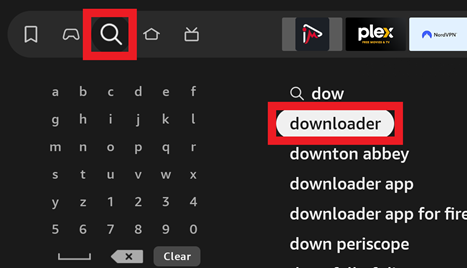
Select Downloader
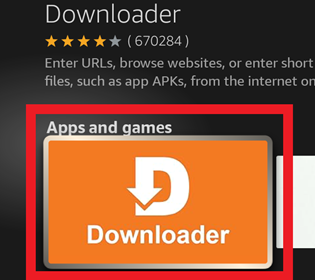
Click the Get or Download button to download the app
Press the Home button on the remote to go back to the main screen
Enable Developer options
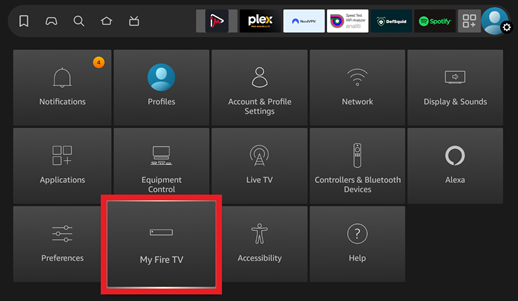
Select FireStick Settings

Click My Fire TV
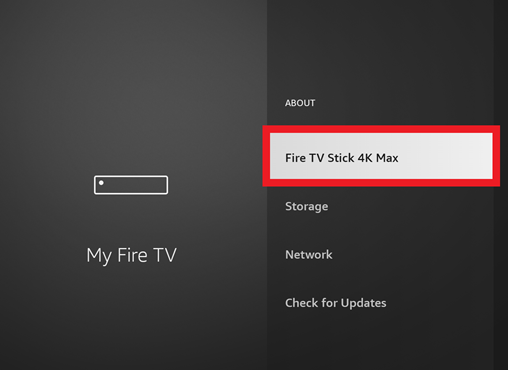
Select About
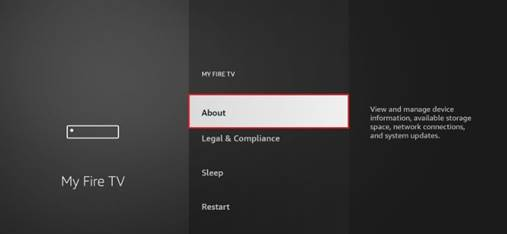
Click on Fire TV Stick 4K quickly 7 times. You will see a message on the bottom of the screen saying No need, you are already a developer
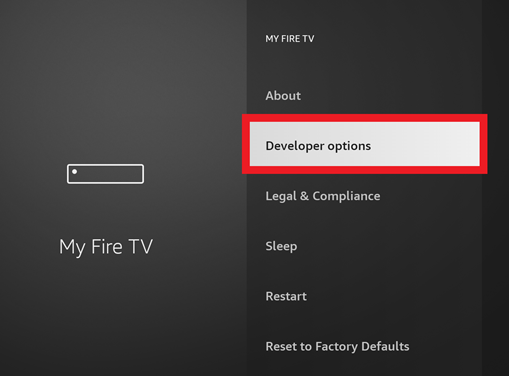
Press the back button once to go back to Settings > My Fire TV and click Developer Options
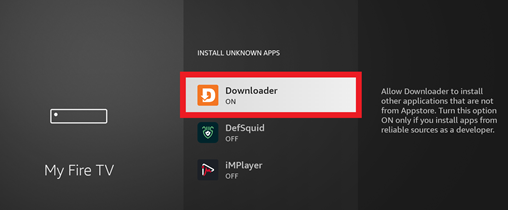
Click Install unknown apps and set Downloader to ON
Press the Home button on the remote to go back to the main screen
Install BlazeTV
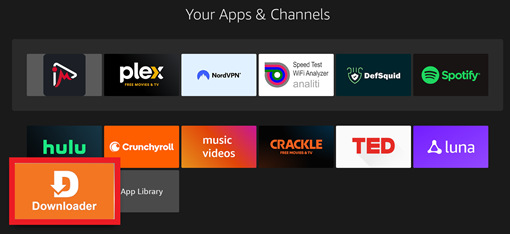
Select Apps

Scroll down and choose Downloader
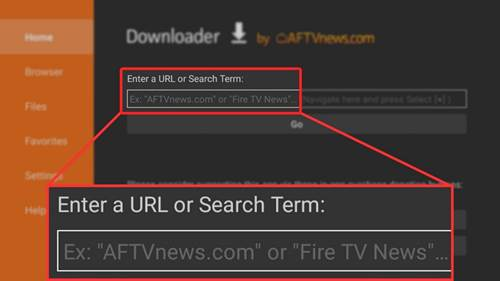
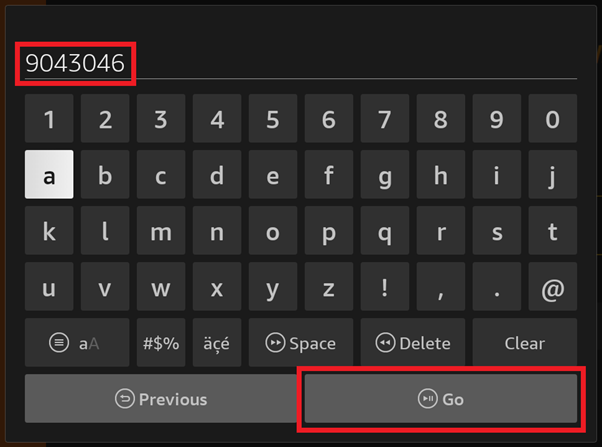
In the URL box enter the numbers 9043046 then click Go
This should download the latest app
Once downloaded, click INSTALL to install the app.

Once installed, click OPEN

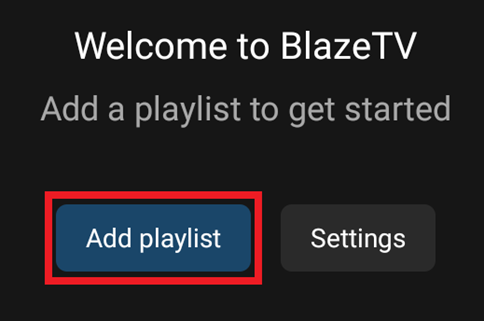
Once the app is open choose Add playlist
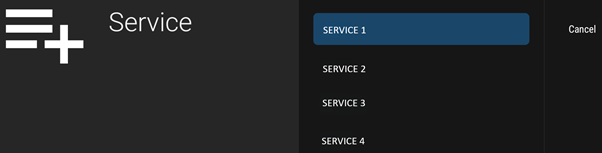
Select the service you are subscribing to. If you are subscribing to multiple services you will add those later.
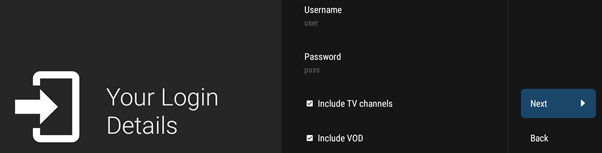
Enter your Username and Password that I will provide
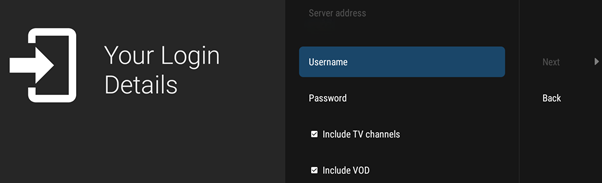
Choose Next
Choose Done
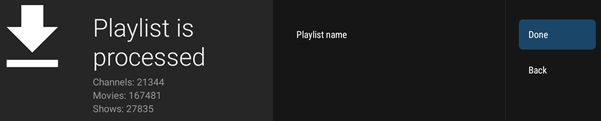
Note: It may take a few minutes for EPG (Guide) to populate
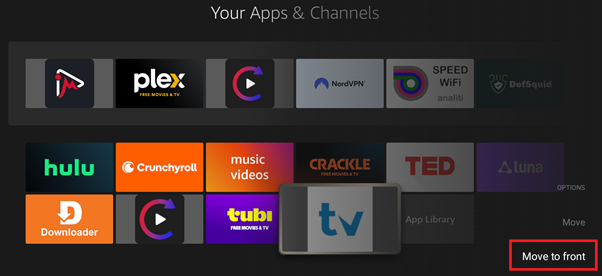
Add BlazeTV to top row for easy access
Select Apps

Scroll down until BlazeTV is highlighted but don’t select it. Then press the menu button on the remote
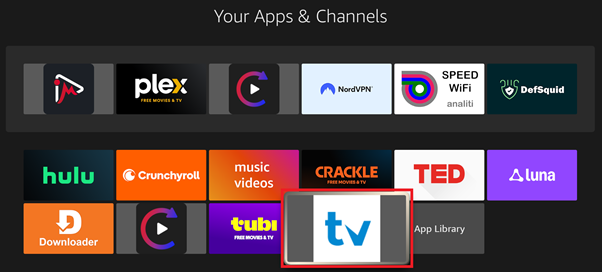
Choose Move to front
Press the Home button on the remote to go back to the main screen
You will now see BlazeTV on the top row
